
Your survey setup dashboard is broken up into tasks, in order to make setup as simple as possible. The number of tasks you have can differ depending on a number of factors; for example, if you have included Workplace Insight Pro or Elevate as part of your subscription.
This article will explain the initial setup process and provide a high level overview of each task. A link to a more in detail article will be included where one exists.
Create a new survey entry
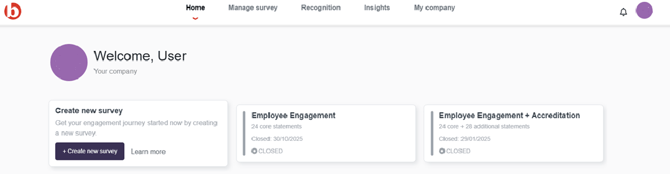
To get started, navigate to the Home section on your dashboard and hit the + Create new survey button. This will open our survey setup wizard, which will guide you through the setup process. You can also view previously closed surveys from here, if you wish.
Here, you can choose whether to opt into accreditation or not, and tell us how you'd like to distribute your surveys. The information you provide may change based on the options you pick.
Manage survey
The Manage survey section of your dashboard is where you will complete your set-up tasks. It also contains important information on the tasks you still need to complete and your target launch date.

The tasks you need to complete may vary depending on your package, your distribution methods and whether you have opted for accreditation. Each task has a due date in order to keep you on track, and a status (Get Started, In Progress, Overdue, Complete, Locked). Some tasks will remain locked until a dependant task has been completed; for example, you can't send a demo survey until you have provided your employee data and survey questions.
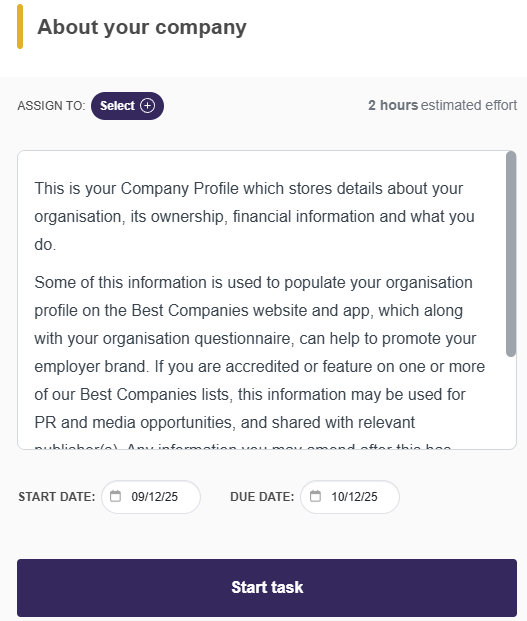
Clicking a task will open a small window providing more information, and allow you to assign the task to another Project Manager or to start the task yourself:
You can find a list of tasks for each section below. More information on individual tasks can be found in this knowledge base.
Set-up & launch
This section is where we ask you to provide all the relevant information for setting up and distributing your survey. Again, this may vary slightly depending on your package and the options you selected in your survey set-up wizard.
Tasks in this section can include:
- Set up charitable contribution
- Review your communications
- About your company
- Set up your employment groups
- Upload your employee data
- Employee Numbers
- Confirm your data
- Select your survey questions
- Send a demo survey
- Schedule launch
Recognition tasks
Recognition tasks are available for organisations who have opted in to accreditation. These allow us to showcase key information about your company if you are accredited, and your organisation may be eligible for special awards, or feature in our best practice libraries. The tasks in this section are:
- Build & Publish your Company Profile
- Complete your Cultural Insight
Manage & roll out data
This is where you can roll out data for users across our Workplace Insight and Elevate platforms. Tasks here may differ depending on your package, and whether you have purchased Elevate and/or WIT Pro.
The tasks in this section can include:
- Manager Validation
- Manager roll out
- Manage your Workplace Insight user access
For additional support please email support@b.co.uk, call us on 01978 856222, or click the 'Get in Touch' button at the top of this page.