
Setting Up Employment Groups in Your Survey
A well-structured setup helps us analyse how different parts of your organisation are performing and allows leaders to easily access results relevant to their areas of responsibility.
⚠️ Tip: Allocating enough time to map your organisational structure into the data file is essential — especially for large or complex organisations. This process may take time if your HR system doesn’t already reflect your ideal reporting structure.
Why Employment Groups Matter
Creating well-defined Employment Groups allows for:
- Granular insight into specific divisions, teams, and business areas.
- More targeted feedback and actions based on real organisational structures.
- Accurate comparisons between different groups.
- Easier access to relevant results for managers and leaders.
✅ Recommendation: Share your proposed final structure with a senior leader or Director for sign-off before uploading. This helps ensure alignment and reduces the likelihood of questions later.
Steps to Create Your Employment Group Structure
Follow the steps below to create an effective Employment Group structure:
1. Identify Your Leadership Team
- Pull out the senior leadership team into a Level 1 group.
✅ Recommendation: Imagine the team sat around a boardroom table; each of the Senior Leaders will be responsible for an area such as Finance, Sales or Human Resources. If your employment groups reflect this structure, each Senior Leader will be able to get a report on their area(s) of responsibility.
-
Your CEO does not need to be assigned to a group, as they will not be surveyed.
2. Define Responsibility
- Create groups for each department or function based on manager responsibility. Ideally each manager (or "people leader") will receive a pack (or packs) that provides insights on the team(s) they are responsible for.
3. Break Down Business Areas Further (for Improve & Elevate clients)
- Add sub-groups or teams under the top-level business areas to gain more granular insights.
- Measure clients cannot create additional sub-groups.
⚠️ Tip: Avoid using abbreviations or internal acronyms for Employment Groups. The names should be clear and recognisable to everyone who may view or discuss the survey results.
If you're unsure on how best to structure your Employment Groups, you can find Example Structures in our Employment Group Best Practice article - an example of our recommended structure can also be found below.
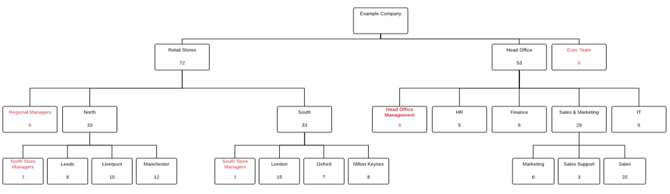
4. Separate Managers from Their Teams
- Managers and People Leaders should not sit in the group they are responsible for, as it may bias the results.
- Instead, create a separate Management Group for managers at each level. Where possible we recommend that these groups are managed by a single person, meaning that manager will receive meaningful data based on a team they are fully responsible for.
⚠️ Tip: Separating managers from their teams is best practice and significantly improves the clarity of your reporting. You can find more information in our Employment Group Best Practice article.
5. Consider Team Sizes
- Data is only reported where 5 or more responses are received. Smaller teams may not generate usable insights - however, we should still try to group employees in a way that makes sense to their managers.
⚠️ Tip: As an example combining two teams to create a reportable pack may seem sensible, but the output will likely be a mixture of teams managed by different people. The data won't be fully reflective of either team and as such may not be useful to either manager.
6. Avoid Groups of One
- The system will not allow groups with only one employee to preserve anonymity. You will be required to merge these before proceeding.
7. After Uploading Your Data
Once you upload your data file, the platform will display your Employment Group structure with headcounts at each level. You’ll be able to:
- Re-name groups
- Move employees between groups
- Merge or combine groups
All updates made here will directly update your dataset.
For additional support please email support@b.co.uk, call us on 01978 856222, or click the 'Get in Touch' button at the top of this page.