
For some users employment groups are rolled into the Upload your employee data task. These users may not see this option.
To begin, select the Set up your employment groups task and click Start task. You should see a blank space to fill out your employment group structure, as well as a space to download/upload employment groups, and a button to finalise.
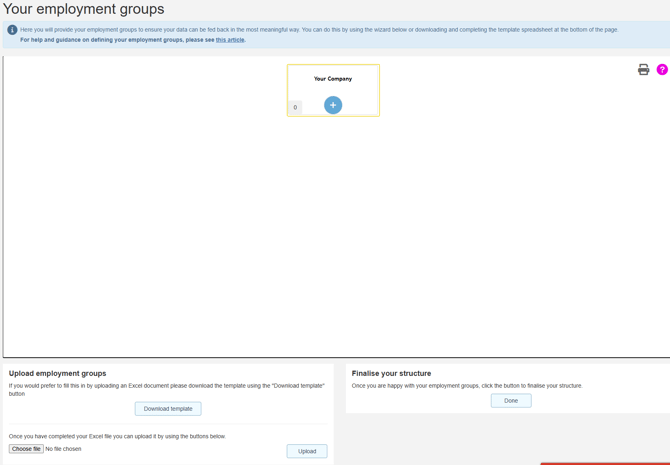
If you have previously surveyed with us, we will import your employment groups from your previous survey. Please note we will not carry over previous headcounts, and these will be set at 0.
Defining your employment group structure
To begin, click the + button. This will open a pop up and allow you to enter a single group, or many groups, by adding the name and headcount. Add these and click Add groups.
This will only add sub groups immediately under the level you're on (for example, a level 2 group or two level 2 groups if you are at the top level). If you wanted to break down into further sub groups (Level 3), you'd need to add them under the correct Level 2 group.


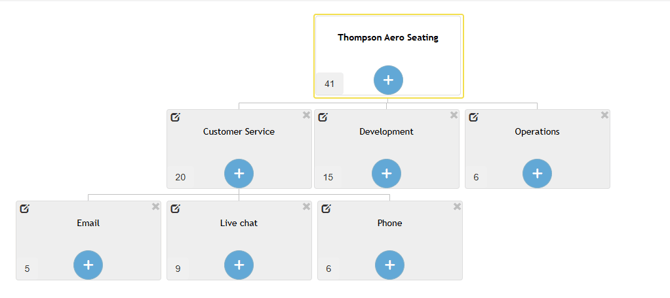
To edit a name or headcount click the pencil icon. You can add additional groups by clicking the + button on any box. Here we will split out "Customer Service" into "Email", "Phone" and "Live chat" groups.
Alternatively, you can download a structure as an excel template by clicking the Download template button. Here you can complete your structure in the file, and upload it when you're happy. You can see below we have added "Front end" and "Back end" groups under "Development", and added split "Back end" out further into "Database" and "Software".
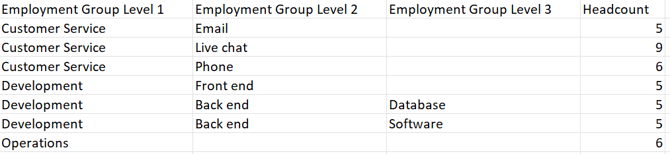
Once you're happy, click the Choose file button and select your file, then click the Upload button.

Finalise your structure
Once you're happy click the Done button to finalise your structure. You'll see a couple of pop up boxes asking you to check some things, for example that your CEO is excluded from any employment groups. Please review these carefully and click Confirm and submit once you're happy.
For help and guidance on defining your employment groups, please see this article.
For additional support please email support@b.co.uk, call us on 01978 856222, or click the 'Get in Touch' button at the top of this page.