
To begin, log into your survey set-up dashboard and go to the Select your survey questions task. There are no dependant tasks so you can access this step immediately after creating your survey.
Once you open the task you will be presented with a couple of options:
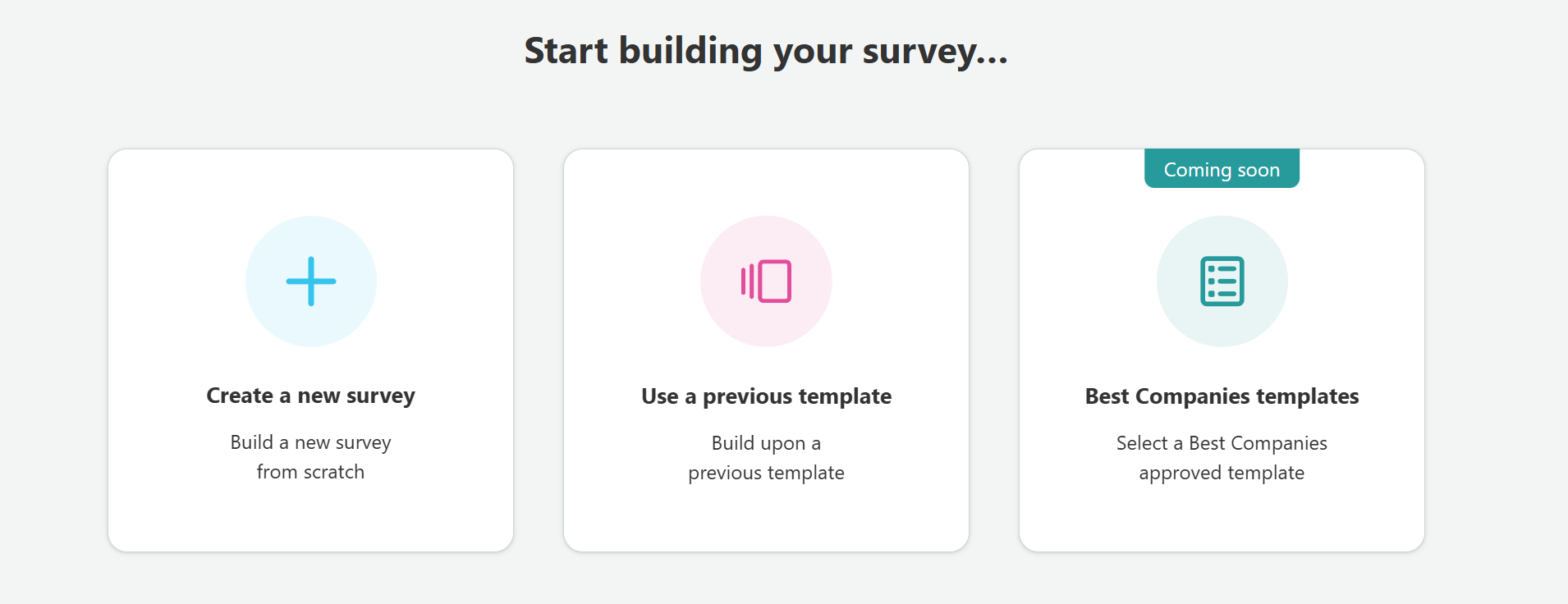
Create a new survey - Select whether to create a full Organisational Health Survey or a Targeted Pulse Survey, then build a new survey from scratch
Use a previous template - Start quickly by using a previous template to effortlessly compare results year-on-year. Users are able to customise survey statements to match your company’s engagement goals.
Best Companies templates - Select a Best Companies approved template tailored to specific survey types (coming soon)
Building your survey
First, select the type of survey you wish to create - a full assessment of your company's Organisational Health, or a targeted survey to track engagement trends or manager effectiveness over time.
Depending on your choice, the next page will ask if you would like to opt into accreditation or if your pulse survey is for Workplace or Manager Effectiveness.
Next, you can customise elements of your survey by selecting additional questions for deeper insights into your organisation, based on our 8 factors for engagement. You'll then be invited to name your survey.
Before confirming your statements, you can check your existing questions and see the breakdown against each of our factors. To make further changes click the Customise button - otherwise, click Build my survey.
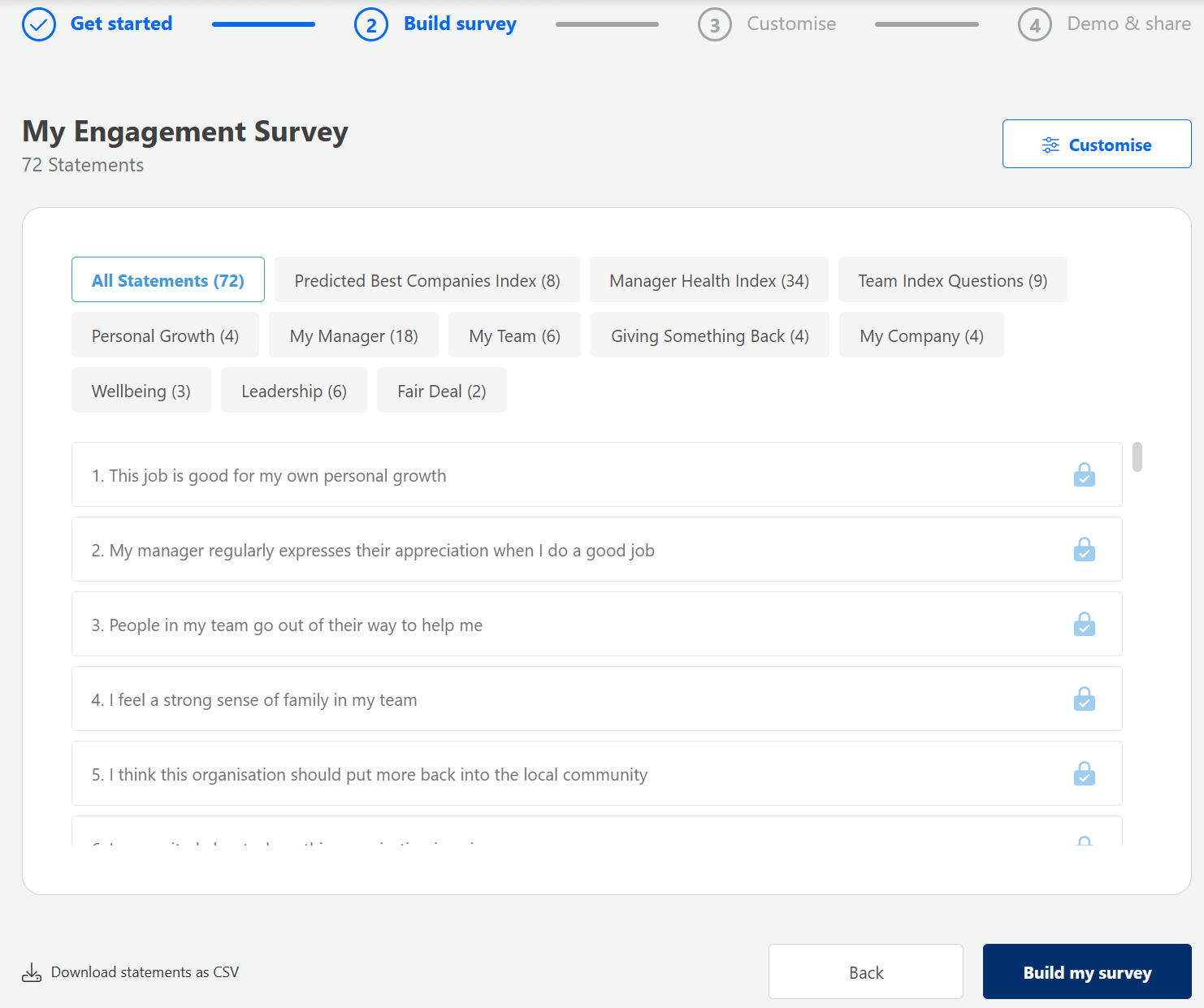
Customise your survey
This page will show your currently selected questions. You can show or hide the statement answers by clicking the three dots. Questions that have a lock icon are core statements that need to be included in all surveys. Questions with a pink N are negatively phrased questions.
Clicking any of the options on the left will open the statement selection modal. Here you can add or remove statements by clicking on them (as long as they are not mandatory). You can also search for individual statements, or filter by factor.
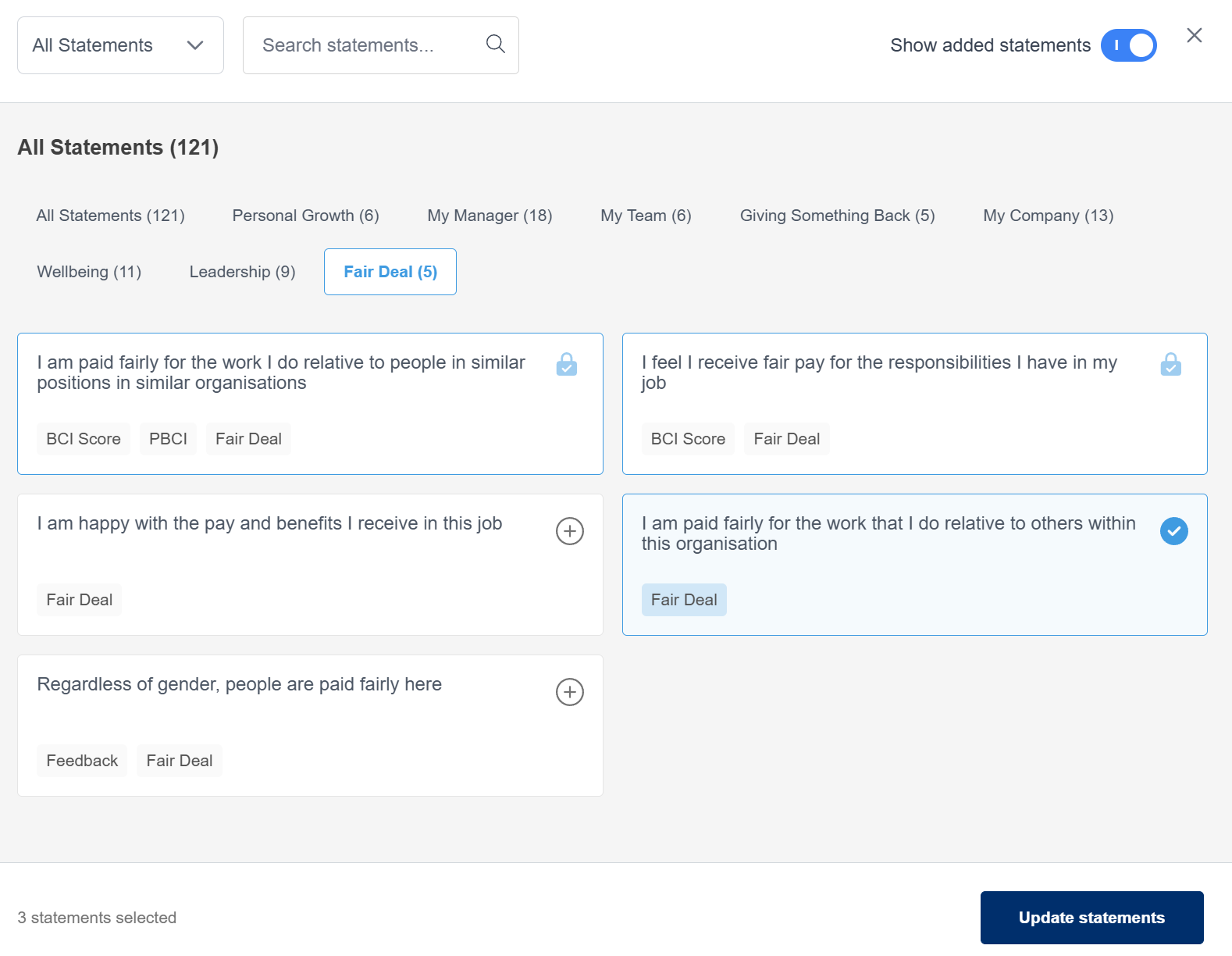
Once you're happy, click Next.
Demo & share
On this page, you can view a "live" demo which will mimic our bHeard survey. You also have another opportunity to customise your survey by clicking Customise. Additionally you can make changes to your survey template name by clicking the pencil icon next to the name:
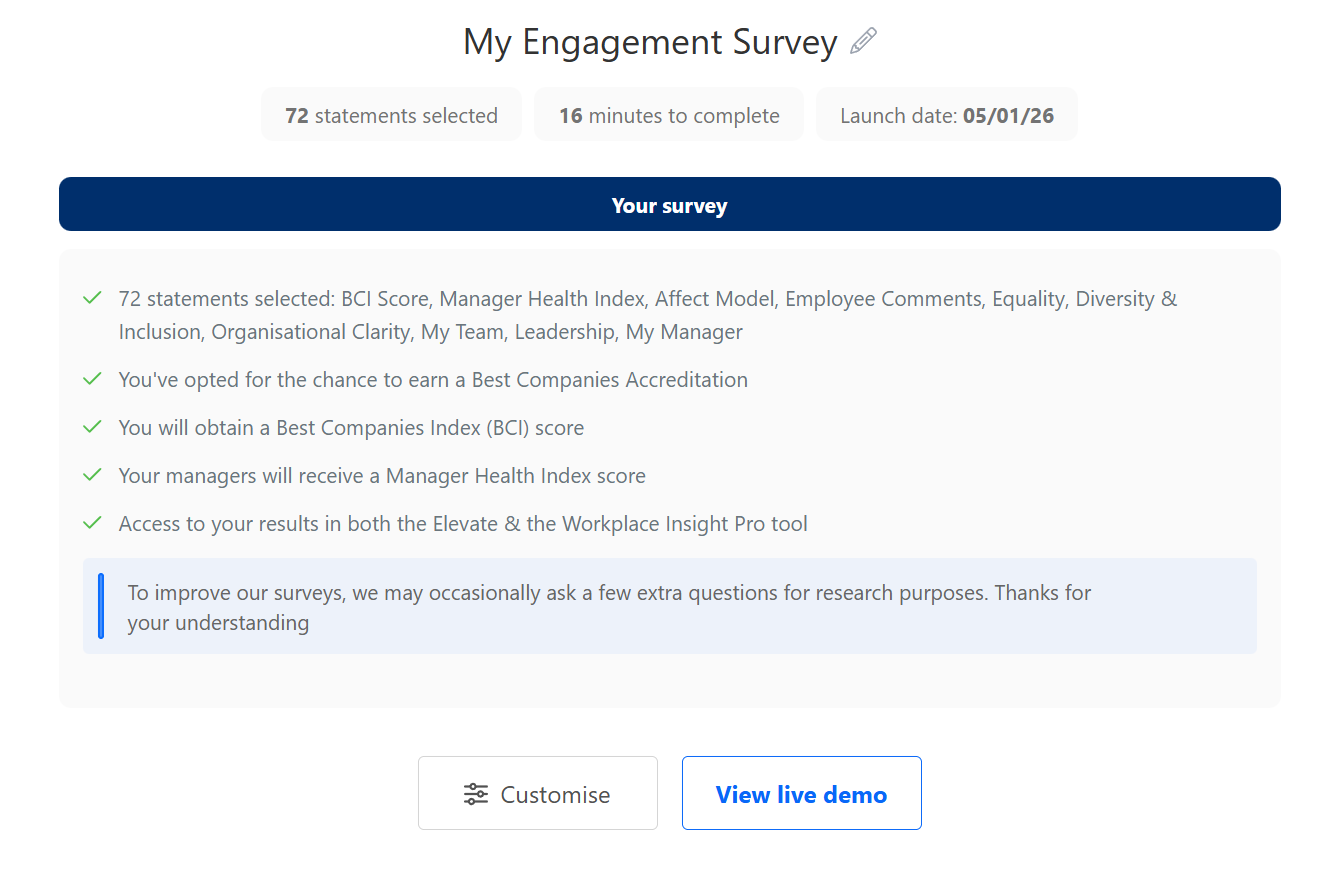
You can also choose to send a link to others in your survey project team, so that they can review your templates:
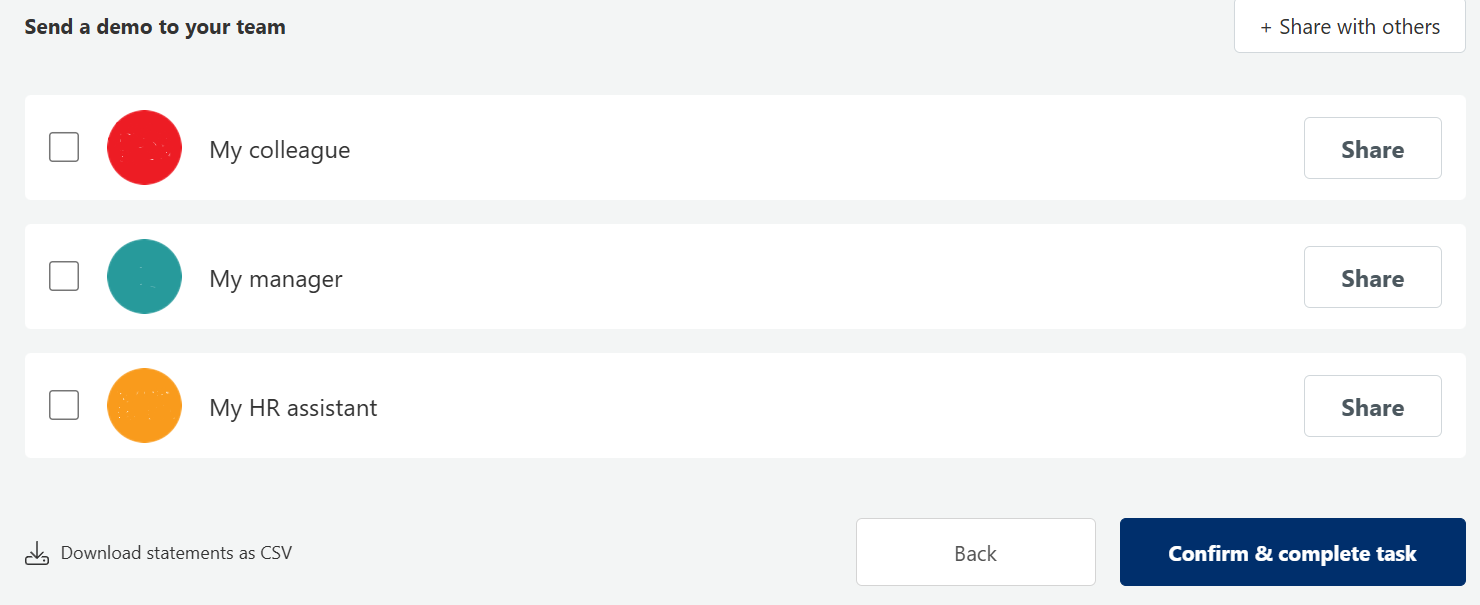
Once you're happy, click Confirm & complete task.
For additional support please email support@b.co.uk, call us on 01978 856222, or click the 'Get in Touch' button at the top of this page.